Space Stratego
Indholdsfortegnelse
Sådan prøver man spillet
Jeg har lavet følgende online multiplayer spil: https://friday-fun.github.io/
Når du har valgt "START NEW GAME", så skal du paste url'en ind i et andet browser vindue for at starte spillet. Herefter bør du se nedenstående skærm. Her skal du skrive dit navn og vælge grønt eller lilla hold.
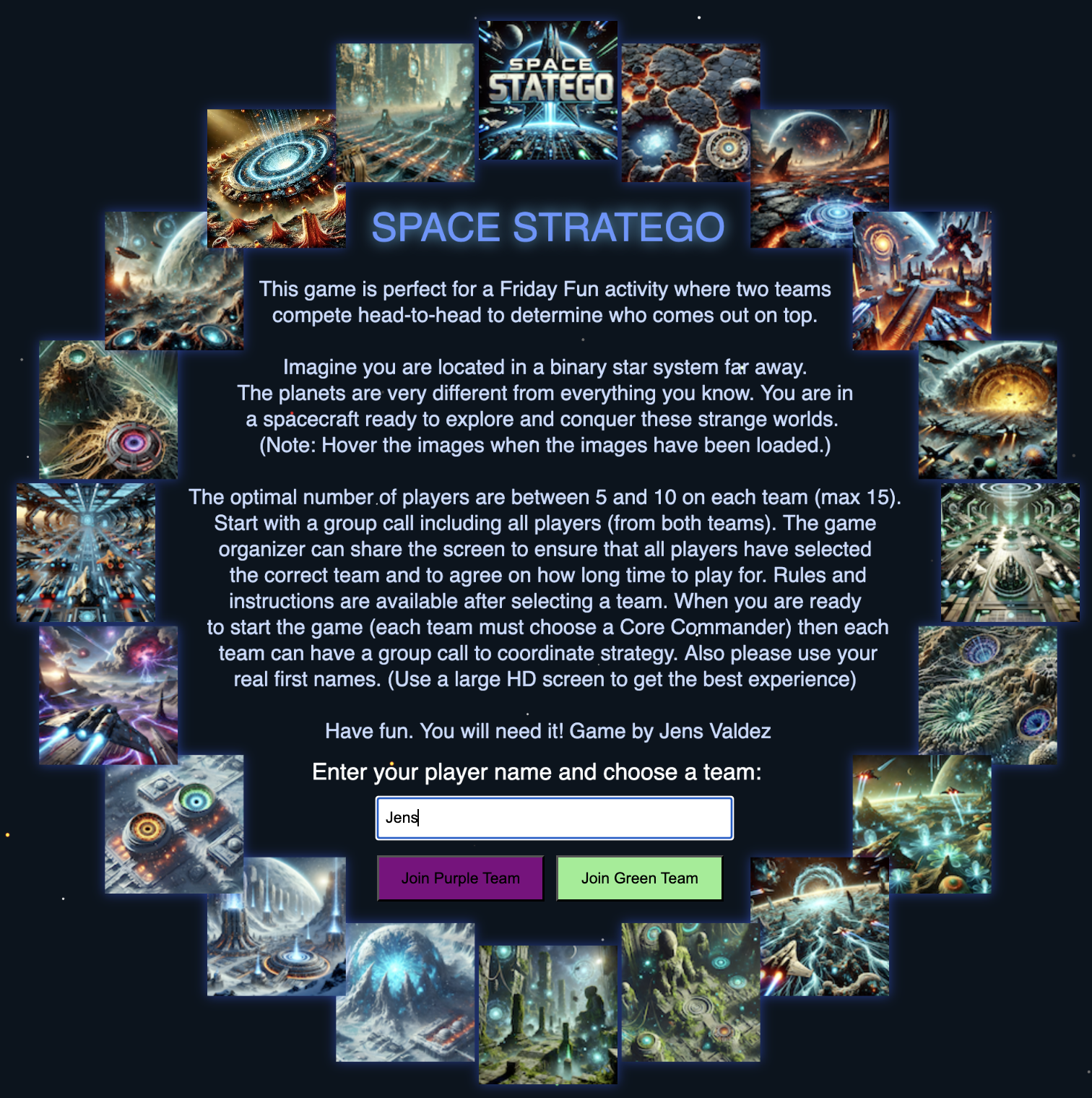
Du kan lige prøve spillet, så du kender funktionaliteten. Man skal være flere spillere for at spille det. Man kan dog godt åbne spillet i to forskellige browser vinduer og hermed have to spillere. De to browser vinduer må dog ikke være tabs i samme browser vindue og de må ikke være minimeret.
Jeg (Jens Valdez) har selv fået ideen til spillet og lavet alt grafikken og koden. Grafikken er lavet ved brug af ChatGPT og meget af koden er lavet med hjælp fra CoPilot.
Alt koden er frit tilgængelig (License: CC BY-NC-SA 4.0 https://creativecommons.org/licenses/by-nc-sa/4.0/), så du kan søge inspiration hvis du skal lave dit egen multiplayer spil.
Man kan finde koden til spillet her: https://github.com/friday-fun?tab=repositories
Hvordan opstod ideen til spillet
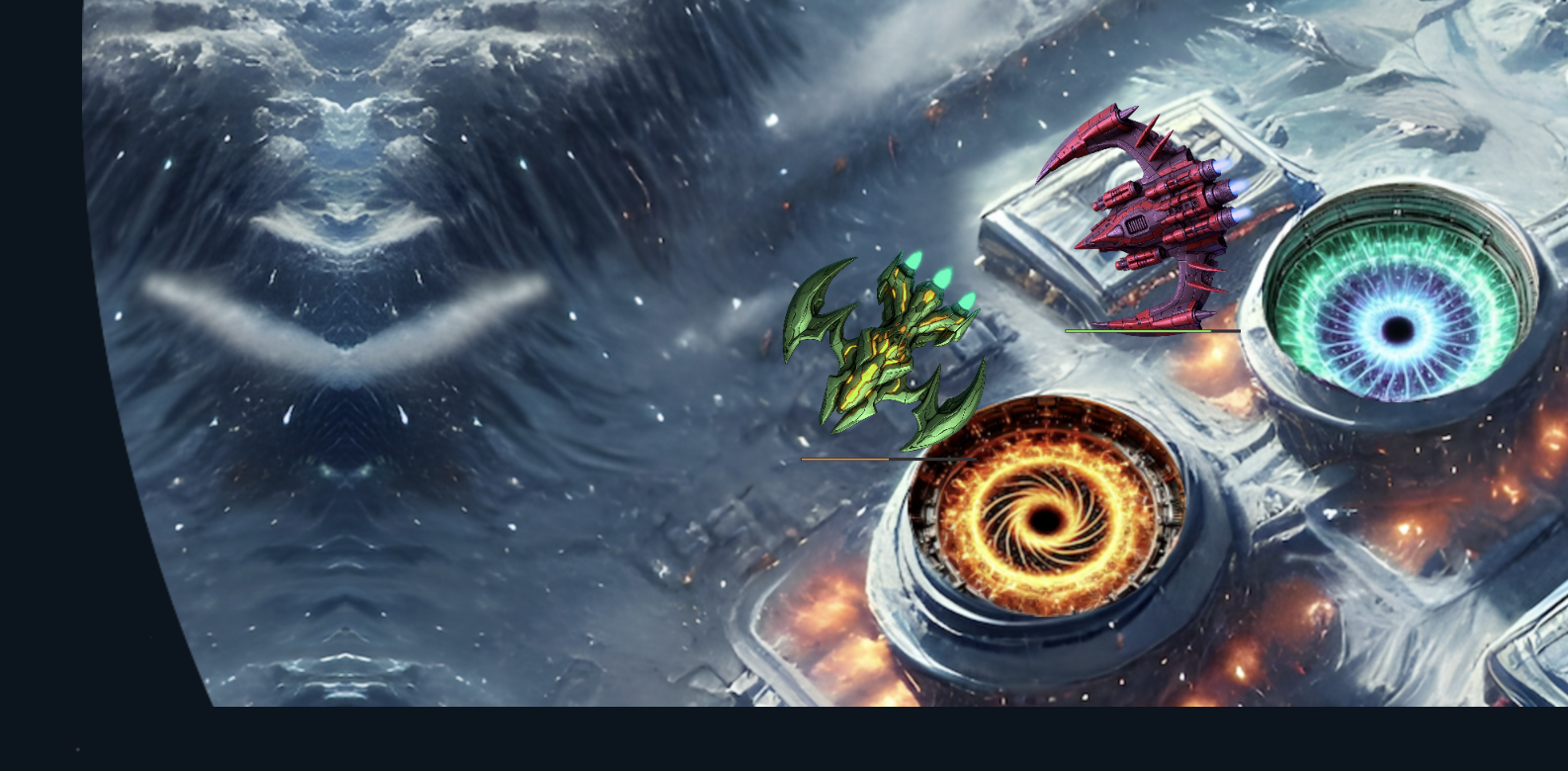
For at få ideen til spillet gjorde jeg følgende:
- Jeg brainstormede hvad jeg selv synes er sjovt. Det er virkelig sjovt at spille Skov Stratego. Her er der to hold med hver deres holdkaptajn. Spillerne får fysike kort med stratego karakterer og de skal så fange hinanden og prøve at tage det andet holds flag.
- På mit arbejde sidder vi i forskellige lande og arbejder sammen online. Hver anden fredag har vi en friday-fun i en halv time. Her spiller vi online spil.
- Jeg tænkte at det kunne være sjovt at lave et online version af Skov Stratego og med en rum tema. Hvad hvis man fløj rundt på en planet og hvad hvis der var et solsystem hvor planeterne var minimaps og man kunne warp'e mellem dem ved brug af portaler.
Udviklingsprocessen
Herunder beskrives den process jeg brugte til at udvikle spillet fra idé til færdigt produkt. Processen er opdelt i seks trin, der går fra afprøvning af teknologien til den endelige udgivelse.
Step 1: Afprøvning af teknikken til multiplayer
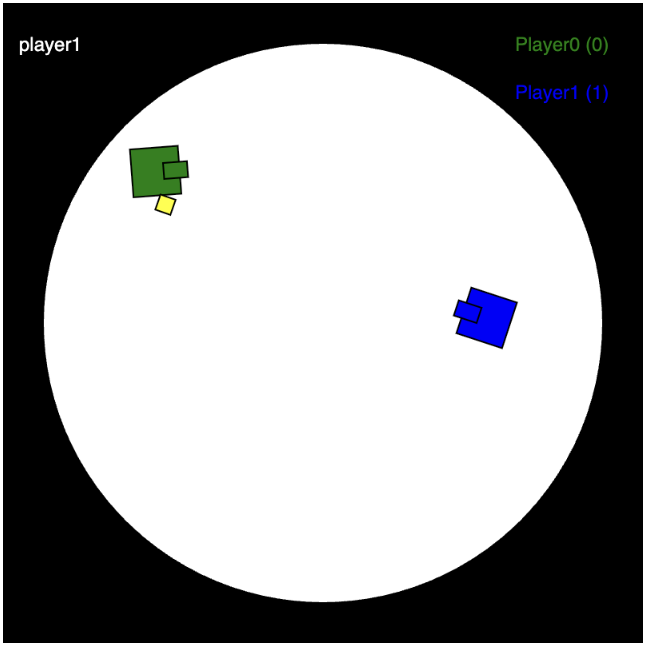
Jeg lavede den mest simple version af spillet og så at teknikken virkede: https://code-a-game.github.io/MultiPlayerPocOOP/
Step 2: Beskrivelse af spillet
Overall description:
I need to build a Realtime Multiplayer Strategy game called Space Stratego (like the board game) where two teams play against each other. It can be used as a Friday Fun activity in companies where two teams can play against each other while each team has a team call where strategy can be discussed during the game. It can also be played as a fun reward activity after finishing a productive “code-a-game” lesson in a school class or in the Coding Pirate Club. The game must be well balanced, with nice graphics and be competitive and fun to play. The main aim is to show that one can create cool graphical games that can run online, e.g., using a ChromeBook, using basic programming without using large frameworks like Unity.
Technology used:
It is implemented in p5js (javascript) and uses the p5party library for handling multiplayer functionality.
The code for
connecting is:
partyConnect("wss://p5js-spaceman-server-29f6636dfb6c.herokuapp.com", "[your-initials-app-name-version]", room);
shared = partyLoadShared("shared", {gameState: "GAME-SETUP",});
me = partyLoadMyShared({playerName: "observer",});
guests = partyLoadGuestShareds();
Programming style:
The code must at all times be kept clean and organized and the logic implemented using an object-oriented programming style
with the classes BackgroundStarManager, BasicMinimap, BlackHole, Canon,
DecorativeStar, Planet, SolarSystem, Spacecraft and
YellowStar.
Only the client that is assigned to be the host (by the p5party framework) updates the shared variable. Examples of shared
data are: gameState, winningTeam, characterList, win counters, game timers and
cannons.
The screen width is 2400 and the screen height 1200. It is divided into these areas:
Game Background Area:
The background is a twinkling star background. When the start screen shows, there are furthermore 20 randomly located decorative background stars. They can glow and they can go supernova. When going supernova, it increases very quickly in size and explodes in a bright flash. The animation takes around 2 seconds.
Start Screen Area:
A ring (radius 400) of 20 small images is shown on the left side of the screen. The small images show graphics from the game play as well as some generated images of what it looks like on the surface of the planets used in the game. In the middle of the ring there is a text describing what to do. Under this text, there is a field for entering the player's username and two buttons for joining each of the teams (Purple or Green). The small images have a size of 120x120. When hovering over a small image, a larger version of that image with size 800x800 is shown next to the circle of smaller images and one of the decorative background stars glows. When clicking on a smaller image, the glowing decorative background star goes supernova. Some of the large images have animations. All this decorative stuff is to create atmosphere and to give the game personality.
Character Selection Area:
This area is located on the left-hand side of the screen. Here, 40 Space Stratego characters for the team are displayed with their name (space-themed names) and rank in brackets. The players on each team can only see the characters for their own team. When a player has selected a character, the player's username is displayed next to that character.
Here is an overview of the characters in the character list:
const CHARACTER_DEFINITIONS = [
{ rank: -1, name: "Core Commander", id: "C", count: 1, color: 'purple', isCoreCommand: true, canShoot: true },
{ rank: 10, name: "Star Commander", id: "10", count: 1, color: 'cyan', isStarCommand: true, canShoot: true },
{ rank: 9, name: "Fleet Admiral", id: "9", count: 1, color: 'magenta', canShoot: true },
{ rank: 8, name: "Ship Captain", id: "8", count: 2, color: 'lime' },
{ rank: 7, name: "Squadron Leader", id: "7", count: 3, color: 'teal', canShoot: true },
{ rank: 6, name: "Lt. Commander", id: "6", count: 4, color: 'lavender', canShoot: true },
{ rank: 5, name: "Chief P. Officer", id: "5", count: 4, color: 'maroon' },
{ rank: 4, name: "Night Sniper", id: "4", count: 4, color: 'olive', canShoot: true, canSnipe: true, canCloak: true },
{ rank: 3, name: "Engineer", id: "3", count: 5, color: 'yellow', isEngineer: true },
{ rank: 2, name: "Power Glider", id: "2", count: 8, color: 'purple', canMoveFast: true },
{ rank: 1, name: "Stealth Squad", id: "S", count: 1, color: 'orange', isStealthSquad: true, canCloak: true },
{ rank: 0, name: "Recon Drone", id: "D", count: 6, color: 'brown', isReconDrone: true },
];
Host Area:
This area is located in the upper right corner of the screen. It shows the username for the browser acting as a host. Furthermore, it shows how much time has passed since the host started the game.
Status Area:
This area is located in the top middle part of the screen. It shows info messages.
Game Area:
This area is located next to the Character Selection Area and it has the size 1200x700. It shows a cropped part of an image representing a planet. It is cropped because screens are wider than they are high. Here, players move their spacecrafts around within the boundary of this cropped circle.
Minimap Area:
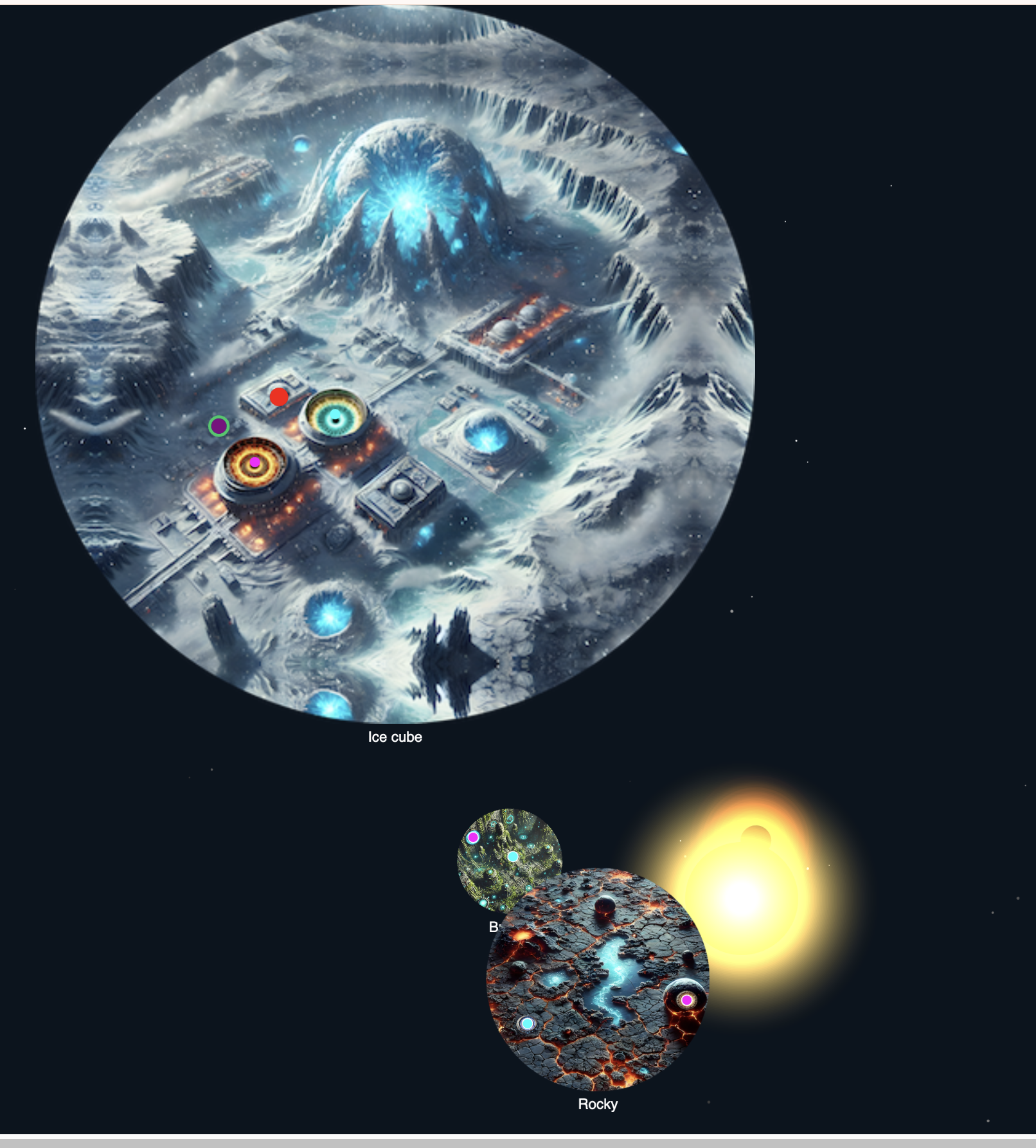
A player can toggle between the Game Area and the Minimap Area by pressing the space button. It shows the full planets, but as a minimap. Here the characters are represented by small circles. The middle of the circle shows what character a player is, and an outer ring shows the team (purple/green) that the player belongs to. Under this minimap, the star system is shown. It consists of an orbiting star and black hole as the center, and around the center there are 5 orbiting planets of different sizes. The perspective is tilted. When the planets orbit the center, they look smaller when they are far away from the observer. The planets act as minimaps where the player has an overview of where the other players are. The planets are in different locations in their orbits for different players. Sometimes the planets are in front of each other and sometimes they are out of sight, so the players have to inform each other to get the full picture of where the opponents are.
Statistics Area:
This area is shown next to the Character Selection Area. It is only visible when the game is not in progress. Here the following statistics are displayed:
- How many times each of the two teams has won, as well as draws.
- The names of the players on each team as well as clients that have not yet selected a team.
Furthermore, a Button with the text “How to play” is shown. When hovering over this, a description of how to play the game is displayed.
Player Controls Area:
This area is located at the bottom of the screen. It shows an overview of the planets, their order, and how warp gates and user controls work.
Character Details Area:
This area is located on the right-hand side of the screen. It shows a list of images of the Space Stratego characters to choose from and their name, rank, battle outcome, and special ability.
Description of the game states:
Game state START-SCREEN:
Game Background Area, Start Screen Area, and Host Area are shown. This is what is shown when starting the game. A player can enter a username and select a team. If 15 players have joined a team, the button for joining the team is removed.
Game state GAME-SETUP:
After choosing a username and a team, the Game Background Area, The Character Selection Area, Statistics Area, Status Area,
Character Details Area, Player Controls, and the Host Area are shown. To start with, only the Core Commander can be chosen,
and the other characters are disabled. A player chooses the Core Commander by clicking on the text representing this Space
Stratego character from the character list in the Character Selection Area. Afterwards, the other characters are enabled for
the other players to choose. The list therefore gets populated with usernames of players on that team. When a player chooses
a character, it is disabled for all players. If no players on a team have selected the Core Commander, then the info text “A
player from your team must select a Core Commander” is shown in the Status Area. If a Core Commander has been selected, then
the text is “Waiting for the other team to choose a Core Commander”. When a player on each team has chosen the Core
Commander, the client acting as a host automatically starts the game, the status message “A new game is starting in 5
seconds” is displayed, and the shared game state changes from GAME-SETUP to IN-GAME. New players
join the game by choosing a team no matter what game state the game is in.
Game state IN-GAME:
Game Background Area, Character Selection Area, Game Area/Minimap Area, Status Area, and Host Area are shown. If the
spacecrafts for two players on different teams touch each other, then there is a battle. If a team wins the game, the client
acting as a host updates the win counters and changes the game state to GAME-FINISHED.
Game state GAME-FINISHED:
Game Background Area, Character Selection Area, Statistics Area, Status area, Character Details Area, Player Controls, and
Host Area are shown. It is displayed in big letters in the middle of the screen which team has won the game. The game
variables are reset so only Core Commanders can be selected and the game state automatically changes to
GAME-SETUP.
Description of the game mechanics:
Spacecraft mechanics:
A character is represented by an image of a spacecraft and it has a size represented by a circle. Some of the characters can shoot. A thin life bar displayed under each spacecraft shows the remaining number of lives. When there are no more lives, the spacecraft is removed and the status text “You lost by being hit too many times” is shown. Bullets are removed if they hit a target or if they fly out of the visible area. The Core Commanders spawn in a fixed location next to a warp gate on two different planets. Other characters spawn on the same planet and in the same location as where the Core Commander is located at the time of spawning.
Control mechanics:
The keys WASD move the spacecraft on the planet in an up, left, down, or right motion. All characters can move. The spacecraft is at all times pointing at the mouse cursor, and one shoots by clicking the mouse button.
Battle mechanics:
Spacecrafts from different teams are in battle when they touch each other. The character with the highest rank wins, except for the Stealth Squad that wins against the Star Commander, and the Recon Drone draws against everyone except that it loses to the Engineer. If a character loses or draws, then it is removed. The game ends with a draw if the two Core Commanders battle, and the game is won if touching the opponent's Core Commander.
We have the following battle info messages:
- If a player loses, then the info message is e.g. “You were a Ship Captain(8) and lost a battle vs a Fleet Admiral(9) - Lars” (username of the opponent). The player can now choose a new free character from the Character Selection Area. When a character loses a battle, it is removed for selection in the character list.
- If it's a draw, then the behaviour is the same as if one loses, except the info message will be something like “You were a Fleet Admiral(9) and had a draw in a battle vs a Fleet Admiral(9) - Lars” (username of the opponent)
- If a player wins, then the info message is e.g. “You are a Fleet Admiral (9) and just won a battle vs a Ship Captain (8) - Jens (username of the opponent).
- If the two Core Commanders battle, then the game has finished with a draw and the text displayed is “DRAW as the two Core Commanders were in battle!”.
- If a player (that is not the Core Commander) touches the Core Commander from the other team, then the game finishes with a win and the text displayed is e.g. “GREEN TEAM WINS! (Core Commander captured by Jens)”
- A team loses if their Core Commander is hit too many times, and here the text is e.g. “GREEN TEAM WINS! (Core Commander was hit too many times).
Note: If the browser having the Core Commander disconnects, then the game is lost for this team.
Warp gate mechanics:
Each planet has an up warp gate and a down warp gate. The location of the warp gates are fixed on each planet. When moving into an up warp gate, the player is transferred to the up warp gate on the planet with a higher planet index. The up warp gate on the planet with the highest planet index transfers the player to the up warp gate of the planet with the lowest planet index. Similarly, there is a down warp gate on each planet. Warp gates have a cooldown of 4 seconds before any warp gates can be used. The warp gates have a pulsation or rotation animation. They have no color or movement when they are inactive.
Cannon mechanics:
The planet with index 0 has three hovering cannons. Each of them shoots bullets at the nearest player. Data for the hovering cannons and their bullets are stored in the shared variable.
Graphics:
Pushing the "p" key should toggle graphics on/off
Resources:
All images are available and ready for use.
Step 3: Kravsspecifikation
Man kan lave en kravsspecifikation som en ".md" fil (En .md fil er en Markdown-fil. Markdown er et letvægtsmarkeringssprog, der bruges til at formatere tekst ved hjælp af en simpel syntaks, som er nem at læse og skrive for både mennesker og maskiner).
Her er den: spaceStrategoPRD.md
Jeg har fået Googles Gemini AI til at lave beskrivelsen af spillet om til en Kravsspecifikation.
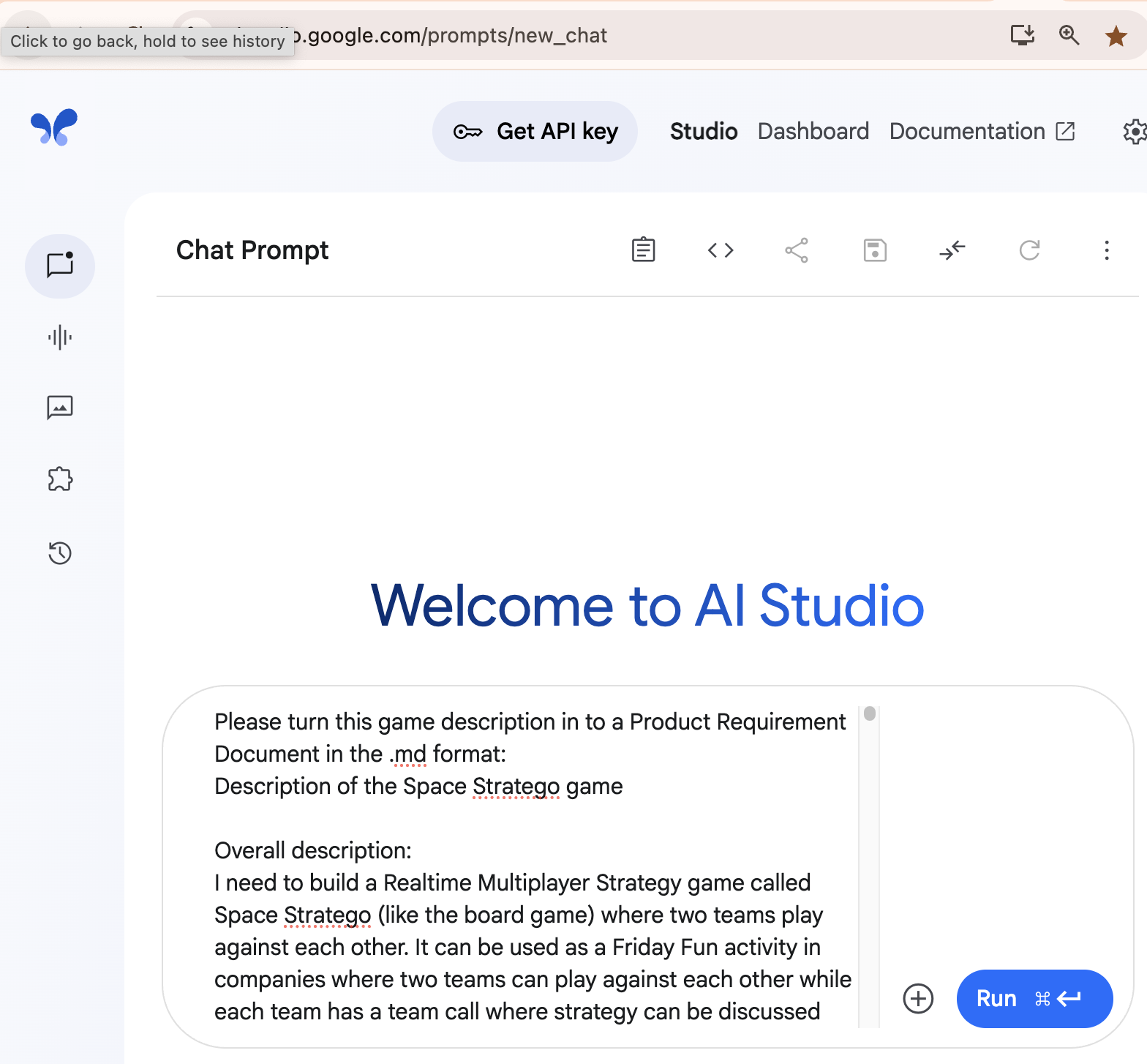
https://aistudio.google.com/prompts/new_chat
Her er en formateret version af kravsspecifikationen.
Version: 1.0
Date: 2025-04-01
Status: Done
1. Overview
1.1. Product Goal
Space Stratego is a real-time multiplayer strategy game designed for team-based play. It serves as an engaging activity for corporate team-building, a rewarding project for educational coding classes, or a fun game for coding clubs. The primary objective is to create a well-balanced, graphically appealing, competitive, and fun online game using foundational web technologies (p5.js) without relying on large game engines like Unity.
1.2. Target Audience
- Corporate Teams: For "Friday Fun" activities and team-building exercises.
- Educational Institutions: As a reward or project for students in "code-a-game" lessons.
- Coding Clubs: (e.g., Coding Pirate Club) as a fun, interactive group activity.
1.3. Success Metrics
- The game is fully playable in a web browser (e.g., ChromeBook).
- The game balance is perceived as fair and competitive by players.
- The game is visually appealing and creates an engaging atmosphere.
- Multiplayer functionality is stable and supports two teams of up to 15 players each.
2. Technical Specifications
2.1. Core Technology
- Language: JavaScript
- Library: p5.js
- Multiplayer: p5.party library
2.2. Multiplayer Implementation
Connection Endpoint:
partyConnect("wss://p5js-spaceman-server-29f6636dfb6c.herokuapp.com", "[your-initials-app-name-version]", room);Data Management: The host-client model will be used. Only the client designated as host by p5.party will update the shared state.
Shared Data Objects:
shared = partyLoadShared("shared", {gameState: "GAME-SETUP"});- me: Data specific to the local player.
me = partyLoadMyShared({playerName: "observer"});- guests: An array of me objects from all other connected clients.
guests = partyLoadGuestShareds();2.3. Programming Style
The codebase must be clean, organized, and follow an Object-Oriented Programming (OOP) paradigm.
The following classes must be implemented:
- BackgroundStarManager
- BasicMinimap
- BlackHole
- Canon
- DecorativeStar
- Planet
- SolarSystem
- Spacecraft
- YellowStar
3. User Interface (UI) and Screen Layout
Screen Dimensions: 2400px (width) x 1200px (height)
3.1. UI Area Descriptions
The screen is divided into the following functional areas, which are displayed based on the current gameState.
| Area Name | Location | Description |
|---|---|---|
| Game Background Area | Full Screen (background layer) | A twinkling star background. Contains 20 randomly located DecorativeStars during the START-SCREEN state. These stars can glow and go supernova (a 2-second explosive animation). |
| Start Screen Area | Left side of the screen | A ring (radius 400px) of 20 small images (120x120px) from the game. Includes a central text description, a username input field, and "Join Purple" / "Join Green" team buttons. Hovering a small image shows a large version (800x800px) and makes a star glow. Clicking it triggers a supernova. |
| Character Selection Area | Left-hand side | Displays the list of 40 characters for the player's team, showing name and rank. A player's username appears next to a character once selected. Players can only see their own team's list. |
| Host Area | Upper right corner | Displays the username of the client acting as host and a timer showing elapsed game time since the host started. |
| Status Area | Top middle | Displays contextual info messages to the player (e.g., "Waiting for Core Commander", "You lost a battle", win/loss announcements). |
| Game Area | Center, next to Character Selection | A 1200x700px viewport showing a cropped, circular portion of the current planet's map. This is the primary gameplay area where players move their spacecrafts. |
| Minimap Area | Toggles with Game Area (Spacebar) | Shows the full solar system view: a central orbiting star/black hole and 5 orbiting planets. Player locations are shown as colored circles on the planets. The view is tilted, making distant planets appear smaller. Player perspectives of planet positions differ. |
| Statistics Area | Next to Character Selection | Visible when not in-game. Displays team win/draw counts, a list of players on each team (and unassigned players), and a "How to play" button that reveals instructions on hover. |
| Player Controls Area | Bottom of the screen | An overview graphic explaining planet order, warp gates, and key/mouse controls. |
| Character Details Area | Right-hand side | A visual list of all Space Stratego characters, showing their image, name, rank, battle outcome rules, and special abilities. |
4. Game Flow & States
The game operates in one of four main states, managed by shared.gameState.
4.1. START-SCREEN
Visible Areas: Game Background Area, Start Screen Area, Host Area.
Player Actions:
- Enter a username.
- Join either the Purple or Green team.
State Transition:
- When a player selects a team, the game transitions them to GAME-SETUP.
- Team join buttons are disabled for a team once it has 15 players.
4.2. GAME-SETUP
Visible Areas: Game Background Area, Character Selection Area, Statistics Area, Status Area, Character Details Area, Player Controls Area, Host Area.
Player Actions:
- Players select a character from the Character Selection Area.
Logic:
- Initially, only the Core Commander character is selectable.
- Once a player on a team selects the Core Commander, the remaining characters for that team are enabled for other players on that team.
- A character, once chosen, cannot be selected by another player.
- Status Message: "A player from your team must select a Core Commander" is shown until one is chosen. Then, "Waiting for the other team to choose a Core Commander".
State Transition:
- Triggered automatically by the host when both teams have a Core Commander.
- The Status Area displays "A new game is starting in 5 seconds".
- The state changes to IN-GAME.
4.3. IN-GAME
Visible Areas: Game Background Area, Character Selection Area, Game Area / Minimap Area + Character Details Area, Status Area, Host Area.
Player Actions:
- Move spacecraft (W, A, S, D).
- Aim (mouse cursor) and shoot (mouse click).
- Toggle between Game Area and Minimap Area + Character Details Area (Spacebar).
- Use warp gates to travel between planets.
State Transition:
- Triggered by the host when a win/loss/draw condition is met.
- The host updates win counters.
- The state changes to GAME-FINISHED.
4.4. GAME-FINISHED
Visible Areas: Game Background Area, Character Selection Area, Statistics Area, Status Area, Character Details Area, Player Controls Area, Host Area.
Logic:
- The winning team (or "DRAW") is displayed prominently in the middle of the screen.
- Game variables are reset (e.g., character selections are cleared, making only Core Commanders selectable again).
State Transition:
- Automatically transitions back to GAME-SETUP to allow for the next round to begin.
5. Core Game Mechanics
5.1. Characters & Spacecraft
Representation: Each character is a spacecraft image within a circular boundary for collision detection. A thin life bar is displayed below the spacecraft.
Spawning:
- The two Core Commanders spawn at fixed locations next to warp gates on two different planets.
- All other characters spawn on the same planet and at the same location as their team's Core Commander at the moment they join the game.
Character Definitions:
const CHARACTER_DEFINITIONS = [
  { rank: -1, name: "Core Commander", id: "C", count: 1, color: 'purple', isCoreCommand: true, canShoot: true },
  { rank: 10, name: "Star Commander", id: "10", count: 1, color: 'cyan', isStarCommand: true, canShoot: true },
  { rank: 9, name: "Fleet Admiral", id: "9", count: 1, color: 'magenta', canShoot: true },
  { rank: 8, name: "Ship Captain", id: "8", count: 2, color: 'lime' },
  { rank: 7, name: "Squadron Leader", id: "7", count: 3, color: 'teal', canShoot: true },
  { rank: 6, name: "Lt. Commander", id: "6", count: 4, color: 'lavender', canShoot: true },
  { rank: 5, name: "Chief P. Officer", id: "5", count: 4, color: 'maroon' },
  { rank: 4, name: "Night Sniper", id: "4", count: 4, color: 'olive', canShoot: true, canSnipe: true, canCloak: true },
  { rank: 3, name: "Engineer", id: "3", count: 5, color: 'yellow', isEngineer: true },
  { rank: 2, name: "Power Glider", id: "2", count: 8, color: 'purple', canMoveFast: true },
  { rank: 1, name: "Stealth Squad", id: "S", count: 1, color: 'orange', isStealthSquad: true, canCloak: true },
  { rank: 0, name: "Recon Drone", id: "D", count: 6, color: 'brown', isReconDrone: true },
];
5.2. Player Controls
canShoot: true).5.3. Battle Mechanics
Engagement: A battle occurs when spacecraft from opposing teams touch.
Resolution:
- The character with the higher rank wins.
- Exception 1: Stealth Squad (rank 1) defeats Star Commander (rank 10).
- Exception 2: Recon Drone (rank 0) draws against all characters except the Engineer (rank 3), to which it loses.
Outcome:
- Loss/Draw: The player's spacecraft is removed from the game. The character is removed from the Character Selection Area for the current game. The player can then select a new, available character.
- Win: The player's spacecraft remains. The opponent's is removed.
Win/Loss Conditions:
- Team Win: A player's spacecraft touches the opponent's Core Commander.
- Team Loss: A team's Core Commander has its life bar depleted by bullets.
- Team Loss: The player controlling the Core Commander disconnects from the game.
- Draw Game: The two Core Commanders battle (touch) each other.
5.4. Warp Gate Mechanics
Functionality: Each of the 5 planets has a fixed "up" and "down" warp gate.
- Entering an "up" gate transports the player to the "up" gate on the planet with the next highest index (looping from the last planet to the first).
- Entering a "down" gate transports the player to the "down" gate on the planet with the next lowest index (looping from the first planet to the last).
Cooldown: After using any warp gate, a player has a 4-second cooldown before they can use any warp gate again.
Visuals: Warp gates have a pulsating/rotating animation when active. They are static and uncolored when on cooldown for a specific player.
5.5. Cannon Mechanics
Location: The planet with index 0 has three hovering cannons.
Behavior: Each cannon automatically targets and shoots bullets at the nearest player, regardless of team.
Data: Cannon positions, state, and their bullets are stored in the shared object and managed by the host.
6. Additional Features
6.1. Graphics Toggle
Pressing the p key will toggle the display of graphics on and off. This can be used for performance testing or a
minimalist view.
7. Assets
All required image assets for backgrounds, spacecraft, planets, and UI elements are available and ready for use.
Step 4: To Do liste
Man kan lave To Do listen som en ".md" fil (En .md fil er en Markdown-fil. Markdown er et letvægtsmarkeringssprog, der bruges til at formatere tekst ved hjælp af en simpel syntaks, som er nem at læse og skrive for både mennesker og maskiner).
Her er den: spaceStrategoToDoList.md
Her er en formateret version af To Do listen:
Space Stratego: Development To-Do List
This document outlines the development tasks, broken down into sequential phases, for building the Space Stratego game.
Phase 1: Core Gameplay Logic (No Graphics/Shooting)
Goal: Implement a playable version of the game focused on movement, team/character selection, and touch-based battle mechanics.
Project Setup
- Set up a new p5.js project and integrate the p5.party library.
- Establish the multiplayer connection and initialize shared, me, and guests data structures.
State Management
- Create the game state machine controlled by shared.gameState (START-SCREEN, GAME-SETUP, IN-GAME, GAME-FINISHED).
- Implement the Spacecraft class with properties for position, rank, team, and owner.
Start Screen Area (Functional)
- Implement a text input field for playerName.
- Implement two buttons for "Join Purple Team" and "Join Green Team".
- On team selection, update the player's me object and transition deres view to GAME-SETUP.
Character Selection Area (Functional)
- Display a text list of available characters for the player's team.
- Enforce the rule that a "Core Commander" must be selected first by each team.
- Allow players to select a character, updating a shared characterList.
- Disable characters in the list once they are selected.
Game Area & Movement (Functional)
- Implement WASD keyboard controls for movement, updating the player's position in their me object.
- Implement aiming logic where the player's spacecraft logically points towards the mouse cursor.
Touch-Based Battle & Win Logic (Host-Side)
- (Host) Implement collision detection between opposing team spacecraft.
- (Host) On collision (touch), apply the primary battle rules (higher rank wins, exceptions).
- (Host) Implement the primary win/loss/draw conditions (touch Core Commander, Core Commanders touch, disconnect).
- (Host) When a game ends, update shared.winningTeam and change shared.gameState to GAME-FINISHED.
Game Flow Control (Host)
- Implement a "Start Game" button visible only to the host, enabled when both teams have a Core Commander.
- Implement a "Start New Game" button visible only to the host in the GAME-FINISHED state.
Status Area (Functional)
- Display text-based messages based on game state and events.
Phase 2: Basic Minimap
Goal: Provide players with an initial tactical overview of the game area.
Minimap Toggle
- Implement a toggle using the Spacebar to switch between Game Area and a large Minimap view.
Basic Minimap Display
- Create the BasicMinimap class.
- Draw a large representation of the entire game map when the minimap is active.
- Render players as simple colored dots/circles on the minimap.
Phase 3: Shooting & Special Abilities
Goal: Implement ranged combat and the unique abilities for specific characters.
Core Shooting Mechanics
- Implement shooting on mouse-click.
- Implement bullet creation, movement, and removal.
- Implement a life bar property for all spacecraft.
- (Host) Implement damage logic and spacecraft removal at zero health.
- (Host) Add the win condition for destroying a Core Commander with bullets.
Cloaking (Night Sniper, Stealth Squad)
- Implement a key press to toggle the isCloaked state.
- Reduce movement speed by 50% when cloaked.
- Hide cloaked units on the minimap.
Fast Movement (Power Glider)
- Increase the base movement speed for the Power Glider.
Sniping (Night Sniper)
- Make bullets twice as fast for the Night Sniper.
Phase 4: Automation & Host UI
Goal: Streamline the game flow and provide necessary information about the host and game time.
Game Flow Automation
- (Host) Replace the "Start Game" button with an automatic 5-second countdown.
- (Host) Replace the "Start New Game" button with an automatic transition from GAME-FINISHED to GAME-SETUP.
Host Area Implementation
- Display the current host's username.
- Implement and display an elapsed game timer.
Phase 5: Statistics & Pre/Post-Game UI
Goal: Provide players with meta-game statistics and better team organization information.
Statistics Tracking
- (Host) Add and increment win/draw counters in the shared object.
Statistics Area Implementation
- Display the win/draw counts in GAME-SETUP and GAME-FINISHED states.
- Display lists of players on each team and unassigned observers.
"How to Play" Feature
- Add a "How to Play" button that reveals instructions on hover.
Phase 6: Advanced Minimap (Solar System View)
Goal: Upgrade the basic minimap into the full, dynamic Solar System view.
OOP Class Implementation
- Create the SolarSystem, Planet, BlackHole, and YellowStar classes.
Solar System Mechanics
- Implement the SolarSystem to manage 5 orbiting Planet instances.
- Implement tilted perspective logic to make distant planets appear smaller.
Minimap View Upgrade
- Draw the SolarSystem with planets as small minimaps underneath the large minimap.
- Render player dots correctly on their respective planets in the solar system view.
Asymmetric Information
- Assign each player a random orbital phase offset for their solar system view.
Phase 7: Cannon Mechanics
Goal: Add the autonomous cannon threat to Planet 0.
Canon Class & Setup
- Create the Canon class.
- (Host) Instantiate three Canon objects on Planet 0 and store their state in shared.cannons.
Cannon Logic (Host-Side)
- (Host) Implement logic for each cannon to find the nearest player, aim, and fire bullets.
- (Host) Manage cannon bullets within the shared object.
Phase 8: UI Polish (Details & Controls)
Goal: Add helpful UI elements that improve player understanding.
Character Details Area
- Create the Character Details display area.
- Implement logic to show it during GAME-SETUP and when the minimap is active.
- Populate the area with character images, ranks, and special abilities.
Player Controls Area
- Create a static graphic or text area at the bottom of the screen explaining controls.
Phase 9: Gameplay Graphics & Effects
Goal: Replace all placeholder shapes with final game art and add background effects.
Asset Loading & Implementation
- Load and integrate all image assets (spacecraft, bullets, planets, etc.).
- Update the Spacecraft class to draw its image and a graphical life bar.
Effects and Animations
- Implement warp gate animations (pulsating/rotating).
Background Implementation
- Create and implement the BackgroundStarManager class for a twinkling starfield.
Graphics Toggle
- Implement the p key to toggle all graphics on/off.
Phase 10: Start Screen Visuals
Goal: Fully implement the visually rich and interactive start screen.
Image Ring
- Draw the ring of 20 small (120x120px) images.
Hover & Animation
- Implement hover detection on small images to display the large (800x800px) version.
- Add animations to some of the large images.
Phase 11: Decorative Star Effects
Goal: Add the final layer of atmospheric detail to the start screen.
Decorative Star Class
- Create the DecorativeStar class and instantiate 20 at random locations.
Interactivity
- Link hover/click events from the image ring to the decorative stars.
- On hovering an image, trigger a glow() effect on a linked star.
- On clicking an image, trigger a supernova() animation on the glowing star.
Step 5: Implementering
Jeg startede med at få CoPilot til at implementere fase 1 i todo listen.
Jeg brugte denne promt: spaceStrategoPOC.txt
Som med lidt mindre tilretning lavede denne virkende version af spillet: Space Stratego - Phase 1
Herefter tilføjede jeg en feature ad gangen. Efter hver iteration testede jeg at spillet virkede hvorefter jeg gemte en kopi af koden så det var nemt at gå tilbage til en virkende version.
Step 6: Udgivelse af spillet så det kan spilles online
Da spillet var færdigt, så committede jeg det til GitHub og udgav det som en GitHub page. Jeg prøvede spillet med mine kollegaer og
fik deres feedback således at spillet blev afbalanceret og sjovt at spille i praksis. Spillet kan også bruges f.eks. en skole klasse
eller en gruppe børn fra Coding Pirates, så man f.eks. må spille et spil i slutningen af en programmeringstime.
Hvordan bruger man serveren
Jeg har installeret en server som alle kan bruge til at lave online spil. Når man opdatere variabler i sit spil, så bliver disse værdier automatisk synkroniseret til de andre browsere der er logget på sammen server. Se i kravsspecifikation hvordan man tilgår serveren.
Den nuværende server hedder "p5js-spaceman-server-29f6636dfb6c.herokuapp.com" og man skal huske at opdatere applications navnet så det er pre fixet med forbogstaverne fra sit eget navn samt navnet på applicationen + version således at navnet er entydigt.
Serveren håndterer automatisk synkronisering af spiltilstande mellem alle tilsluttede klienter, så alle spillere altid har den nyeste information.
Se multiplayer eksemplet her for hvordan man tilslutter sig serveren her: Avancerede eksempler
Det er nemt at opsætte sin egen server. Det koster 40 kr pr. måned. Tilgængæld kan tusinde af forskellige applicationer/spil bruge den samme service.
Her er en vejledning i hvordan man opsætter sin egen server: https://justinbakse.notion.site/Server-Setup-d039a4be3a044878bd5ad0931f1c93bd
p5Party har også en server kaldet "demoserver.p5party.org". Jeg har lavet min egen, da der var nogle begrænsinger i forhold til hvor denne server kunne tilgåes fra (Den kunne f.eks. ikke tilgåes fra mit arbejde).
Anvancerede opgaver
Den nuværende implementering af Space Stratego følger ikke best practise. Herudover er der god mulighed for at gøre spillet endnu flottere og sjovere at spille. Prøv at løse følgende opgaver hvis du har mod på en stor udfordring. Det hjælper selvfølgelig at du har et spil der virker som du kan få inspiration fra og at grafikken er lavet:
Opgave 1: Implementer spillet efter best practise
Undersøg hvad der er best practise med hensyn til at programmere sådan et spil. Din opgave er at implementere spillet punkt for punkt i to do listen ud fra beskrivelsen og kravsspecifikationen. Have fokus på at gøre koden så ren, objekt orienteret og så test bar som mulig. Det vil f.eks. gøre koden nemmere at læse, teste og vedligeholde hvis hvert område på skærm var implementeret som sin egen selvstændige komponent/klasse. Herudover vil det gøre program logikken nemmere at teste hvis program logik og render funktionalitet bliver adskildt. Have fun
Opgave 2: Implementer artefakter
Gør spillet mere dynamisk ved at indføre artefakter der f.eks. giver nye våben i en tidsbegrænset periode
Opgave 3: Implementer flere fælles fjender
Ud over flyvende kanoner kan du indfør bosser, vulkaner, kæmpe edderkopper eller lignende på de andre planeter
Opgave 4: Lav grafikken mere dynamisk på planeterne
Planeterne har animerede warp gates. Lave glitrende vand, levende statue øjne og lignende.
Space Stratego
Table of Contents
How to Try the Game
I have created the following online multiplayer game: https://friday-fun.github.io/
After selecting "START NEW GAME," paste the URL into another browser window to start the game. You should then see the screen below. Here you need to enter your name and choose either the green or purple team.
You can try the game to get familiar with its functionality. You need multiple players to play it properly. However, you can open the game in two different browser windows and have two players. The two browser windows must not be tabs in the same browser window and they must not be minimized.
I (Jens Valdez) came up with the game idea and created all the graphics and code. The graphics were created with ChatGPT, and much of the code was made with help from CoPilot.
All the code is freely available (License: CC BY-NC-SA 4.0 https://creativecommons.org/licenses/by-nc-sa/4.0/) so you can seek inspiration if you want to make your own multiplayer game.
You can find the game code here: https://github.com/code-a-game/StrategoCoreV10/
How the Game Idea Originated
To come up with the idea for the game, I did the following:
- I brainstormed what I personally find fun. It's really fun to play Forest Stratego. There are two teams, each with a team captain. Players get physical cards with Stratego characters, and they have to catch each other and try to capture the other team's flag.
- At my workplace, we work together online from different countries. Every other Friday, we have a "Friday Fun" for half an hour where we play online games.
- I thought it would be fun to create an online version of Forest Stratego with a space theme. What if you flew around on a planet, and what if there was a solar system where the planets were minimaps and you could warp between them using portals?
Development Process
Below is a description of the process I used to develop the game from idea to finished product. The process is divided into six steps, from testing the technology to the final publication.
Step 1: Testing the Multiplayer Technology
I created the simplest version of the game to verify that the technology worked: https://code-a-game.github.io/MultiPlayerPocOOP/
Step 2: Game Description
Overall description:
I need to build a Realtime Multiplayer Strategy game called Space Stratego (like the board game) where two teams play against each other. It can be used as a Friday Fun activity in companies where two teams can play against each other while each team has a team call where strategy can be discussed during the game. It can also be played as a fun reward activity after finishing a productive “code-a-game” lesson in a school class or in the Coding Pirate Club. The game must be well balanced, with nice graphics and be competitive and fun to play. The main aim is to show that one can create cool graphical games that can run online, e.g., using a ChromeBook, using basic programming without using large frameworks like Unity.
Technology used:
It is implemented in p5js (javascript) and uses the p5party library for handling multiplayer functionality.
The code for
connecting is:
partyConnect("wss://p5js-spaceman-server-29f6636dfb6c.herokuapp.com", "[your-initials-app-name-version]", room);
shared = partyLoadShared("shared", {gameState: "GAME-SETUP",});
me = partyLoadMyShared({playerName: "observer",});
guests = partyLoadGuestShareds();
Programming style:
The code must at all times be kept clean and organized and the logic implemented using an object-oriented programming style
with the classes BackgroundStarManager, BasicMinimap, BlackHole, Canon,
DecorativeStar, Planet, SolarSystem, Spacecraft and
YellowStar.
Only the client that is assigned to be the host (by the p5party framework) updates the shared variable. Examples of shared
data are: gameState, winningTeam, characterList, win counters, game timers and
cannons.
The screen width is 2400 and the screen height 1200. It is divided into these areas:
Game Background Area:
The background is a twinkling star background. When the start screen shows, there are furthermore 20 randomly located decorative background stars. They can glow and they can go supernova. When going supernova, it increases very quickly in size and explodes in a bright flash. The animation takes around 2 seconds.
Start Screen Area:
A ring (radius 400) of 20 small images is shown on the left side of the screen. The small images show graphics from the game play as well as some generated images of what it looks like on the surface of the planets used in the game. In the middle of the ring there is a text describing what to do. Under this text, there is a field for entering the player's username and two buttons for joining each of the teams (Purple or Green). The small images have a size of 120x120. When hovering over a small image, a larger version of that image with size 800x800 is shown next to the circle of smaller images and one of the decorative background stars glows. When clicking on a smaller image, the glowing decorative background star goes supernova. Some of the large images have animations. All this decorative stuff is to create atmosphere and to give the game personality.
Character Selection Area:
This area is located on the left-hand side of the screen. Here, 40 Space Stratego characters for the team are displayed with their name (space-themed names) and rank in brackets. The players on each team can only see the characters for their own team. When a player has selected a character, the player's username is displayed next to that character.
Here is an overview of the characters in the character list:
const CHARACTER_DEFINITIONS = [
{ rank: -1, name: "Core Commander", id: "C", count: 1, color: 'purple', isCoreCommand: true, canShoot: true },
{ rank: 10, name: "Star Commander", id: "10", count: 1, color: 'cyan', isStarCommand: true, canShoot: true },
{ rank: 9, name: "Fleet Admiral", id: "9", count: 1, color: 'magenta', canShoot: true },
{ rank: 8, name: "Ship Captain", id: "8", count: 2, color: 'lime' },
{ rank: 7, name: "Squadron Leader", id: "7", count: 3, color: 'teal', canShoot: true },
{ rank: 6, name: "Lt. Commander", id: "6", count: 4, color: 'lavender', canShoot: true },
{ rank: 5, name: "Chief P. Officer", id: "5", count: 4, color: 'maroon' },
{ rank: 4, name: "Night Sniper", id: "4", count: 4, color: 'olive', canShoot: true, canSnipe: true, canCloak: true },
{ rank: 3, name: "Engineer", id: "3", count: 5, color: 'yellow', isEngineer: true },
{ rank: 2, name: "Power Glider", id: "2", count: 8, color: 'purple', canMoveFast: true },
{ rank: 1, name: "Stealth Squad", id: "S", count: 1, color: 'orange', isStealthSquad: true, canCloak: true },
{ rank: 0, name: "Recon Drone", id: "D", count: 6, color: 'brown', isReconDrone: true },
];
Host Area:
This area is located in the upper right corner of the screen. It shows the username for the browser acting as a host. Furthermore, it shows how much time has passed since the host started the game.
Status Area:
This area is located in the top middle part of the screen. It shows info messages.
Game Area:
This area is located next to the Character Selection Area and it has the size 1200x700. It shows a cropped part of an image representing a planet. It is cropped because screens are wider than they are high. Here, players move their spacecrafts around within the boundary of this cropped circle.
Minimap Area:
A player can toggle between the Game Area and the Minimap Area by pressing the space button. It shows the full planets, but as a minimap. Here the characters are represented by small circles. The middle of the circle shows what character a player is, and an outer ring shows the team (purple/green) that the player belongs to. Under this minimap, the star system is shown. It consists of an orbiting star and black hole as the center, and around the center there are 5 orbiting planets of different sizes. The perspective is tilted. When the planets orbit the center, they look smaller when they are far away from the observer. The planets act as minimaps where the player has an overview of where the other players are. The planets are in different locations in their orbits for different players. Sometimes the planets are in front of each other and sometimes they are out of sight, so the players have to inform each other to get the full picture of where the opponents are.
Statistics Area:
This area is shown next to the Character Selection Area. It is only visible when the game is not in progress. Here the following statistics are displayed:
- How many times each of the two teams has won, as well as draws.
- The names of the players on each team as well as clients that have not yet selected a team.
Furthermore, a Button with the text “How to play” is shown. When hovering over this, a description of how to play the game is displayed.
Player Controls Area:
This area is located at the bottom of the screen. It shows an overview of the planets, their order, and how warp gates and user controls work.
Character Details Area:
This area is located on the right-hand side of the screen. It shows a list of images of the Space Stratego characters to choose from and their name, rank, battle outcome, and special ability.
Description of the game states:
Game state START-SCREEN:
Game Background Area, Start Screen Area, and Host Area are shown. This is what is shown when starting the game. A player can enter a username and select a team. If 15 players have joined a team, the button for joining the team is removed.
Game state GAME-SETUP:
After choosing a username and a team, the Game Background Area, The Character Selection Area, Statistics Area, Status Area,
Character Details Area, Player Controls, and the Host Area are shown. To start with, only the Core Commander can be chosen,
and the other characters are disabled. A player chooses the Core Commander by clicking on the text representing this Space
Stratego character from the character list in the Character Selection Area. Afterwards, the other characters are enabled for
the other players to choose. The list therefore gets populated with usernames of players on that team. When a player chooses
a character, it is disabled for all players. If no players on a team have selected the Core Commander, then the info text “A
player from your team must select a Core Commander” is shown in the Status Area. If a Core Commander has been selected, then
the text is “Waiting for the other team to choose a Core Commander”. When a player on each team has chosen the Core
Commander, the client acting as a host automatically starts the game, the status message “A new game is starting in 5
seconds” is displayed, and the shared game state changes from GAME-SETUP to IN-GAME. New players
join the game by choosing a team no matter what game state the game is in.
Game state IN-GAME:
Game Background Area, Character Selection Area, Game Area/Minimap Area, Status Area, and Host Area are shown. If the
spacecrafts for two players on different teams touch each other, then there is a battle. If a team wins the game, the client
acting as a host updates the win counters and changes the game state to GAME-FINISHED.
Game state GAME-FINISHED:
Game Background Area, Character Selection Area, Statistics Area, Status area, Character Details Area, Player Controls, and
Host Area are shown. It is displayed in big letters in the middle of the screen which team has won the game. The game
variables are reset so only Core Commanders can be selected and the game state automatically changes to
GAME-SETUP.
Description of the game mechanics:
Spacecraft mechanics:
A character is represented by an image of a spacecraft and it has a size represented by a circle. Some of the characters can shoot. A thin life bar displayed under each spacecraft shows the remaining number of lives. When there are no more lives, the spacecraft is removed and the status text “You lost by being hit too many times” is shown. Bullets are removed if they hit a target or if they fly out of the visible area. The Core Commanders spawn in a fixed location next to a warp gate on two different planets. Other characters spawn on the same planet and in the same location as where the Core Commander is located at the time of spawning.
Control mechanics:
The keys WASD move the spacecraft on the planet in an up, left, down, or right motion. All characters can move. The spacecraft is at all times pointing at the mouse cursor, and one shoots by clicking the mouse button.
Battle mechanics:
Spacecrafts from different teams are in battle when they touch each other. The character with the highest rank wins, except for the Stealth Squad that wins against the Star Commander, and the Recon Drone draws against everyone except that it loses to the Engineer. If a character loses or draws, then it is removed. The game ends with a draw if the two Core Commanders battle, and the game is won if touching the opponent's Core Commander.
We have the following battle info messages:
- If a player loses, then the info message is e.g. “You were a Ship Captain(8) and lost a battle vs a Fleet Admiral(9) - Lars” (username of the opponent). The player can now choose a new free character from the Character Selection Area. When a character loses a battle, it is removed for selection in the character list.
- If it's a draw, then the behaviour is the same as if one loses, except the info message will be something like “You were a Fleet Admiral(9) and had a draw in a battle vs a Fleet Admiral(9) - Lars” (username of the opponent)
- If a player wins, then the info message is e.g. “You are a Fleet Admiral (9) and just won a battle vs a Ship Captain (8) - Jens (username of the opponent).
- If the two Core Commanders battle, then the game has finished with a draw and the text displayed is “DRAW as the two Core Commanders were in battle!”.
- If a player (that is not the Core Commander) touches the Core Commander from the other team, then the game finishes with a win and the text displayed is e.g. “GREEN TEAM WINS! (Core Commander captured by Jens)”
- A team loses if their Core Commander is hit too many times, and here the text is e.g. “GREEN TEAM WINS! (Core Commander was hit too many times).
Note: If the browser having the Core Commander disconnects, then the game is lost for this team.
Warp gate mechanics:
Each planet has an up warp gate and a down warp gate. The location of the warp gates are fixed on each planet. When moving into an up warp gate, the player is transferred to the up warp gate on the planet with a higher planet index. The up warp gate on the planet with the highest planet index transfers the player to the up warp gate of the planet with the lowest planet index. Similarly, there is a down warp gate on each planet. Warp gates have a cooldown of 4 seconds before any warp gates can be used. The warp gates have a pulsation or rotation animation. They have no color or movement when they are inactive.
Cannon mechanics:
The planet with index 0 has three hovering cannons. Each of them shoots bullets at the nearest player. Data for the hovering cannons and their bullets are stored in the shared variable.
Graphics:
Pushing the "p" key should toggle graphics on/off
Resources:
All images are available and ready for use.
Step 3: Product Requirements Document
The Product Requirements Document (PRD) is formatted and stored as a ".md" file (A .md file is a Markdown-file. Markdown is
a lightweight markup language that is used to format text using a simple syntax that is easy to read and write for both
humans and machines).
Here it is: spaceStrategoPRD.md
I made Google's Gemini AI turn the game description into a Product Requirements Document.
https://aistudio.google.com/prompts/new_chat
Here is a formatted version of the Product Requirements Document.
Version: 1.0
Date: 2025-04-01
Status: Done
1. Overview
1.1. Product Goal
Space Stratego is a real-time multiplayer strategy game designed for team-based play. It serves as an engaging activity for corporate team-building, a rewarding project for educational coding classes, or a fun game for coding clubs. The primary objective is to create a well-balanced, graphically appealing, competitive, and fun online game using foundational web technologies (p5.js) without relying on large game engines like Unity.
1.2. Target Audience
- Corporate Teams: For "Friday Fun" activities and team-building exercises.
- Educational Institutions: As a reward or project for students in "code-a-game" lessons.
- Coding Clubs: (e.g., Coding Pirate Club) as a fun, interactive group activity.
1.3. Success Metrics
- The game is fully playable in a web browser (e.g., ChromeBook).
- The game balance is perceived as fair and competitive by players.
- The game is visually appealing and creates an engaging atmosphere.
- Multiplayer functionality is stable and supports two teams of up to 15 players each.
2. Technical Specifications
2.1. Core Technology
- Language: JavaScript
- Library: p5.js
- Multiplayer: p5.party library
2.2. Multiplayer Implementation
Connection Endpoint:
partyConnect("wss://p5js-spaceman-server-29f6636dfb6c.herokuapp.com", "[your-initials-app-name-version]", room);Data Management: The host-client model will be used. Only the client designated as host by p5.party will update the shared state.
Shared Data Objects:
shared = partyLoadShared("shared", {gameState: "GAME-SETUP"});- me: Data specific to the local player.
me = partyLoadMyShared({playerName: "observer"});- guests: An array of me objects from all other connected clients.
guests = partyLoadGuestShareds();2.3. Programming Style
The codebase must be clean, organized, and follow an Object-Oriented Programming (OOP) paradigm.
The following classes must be implemented:
- BackgroundStarManager
- BasicMinimap
- BlackHole
- Canon
- DecorativeStar
- Planet
- SolarSystem
- Spacecraft
- YellowStar
3. User Interface (UI) and Screen Layout
Screen Dimensions: 2400px (width) x 1200px (height)
3.1. UI Area Descriptions
The screen is divided into the following functional areas, which are displayed based on the current gameState.
| Area Name | Location | Description |
|---|---|---|
| Game Background Area | Full Screen (background layer) | A twinkling star background. Contains 20 randomly located DecorativeStars during the START-SCREEN state. These stars can glow and go supernova (a 2-second explosive animation). |
| Start Screen Area | Left side of the screen | A ring (radius 400px) of 20 small images (120x120px) from the game. Includes a central text description, a username input field, and "Join Purple" / "Join Green" team buttons. Hovering a small image shows a large version (800x800px) and makes a star glow. Clicking it triggers a supernova. |
| Character Selection Area | Left-hand side | Displays the list of 40 characters for the player's team, showing name and rank. A player's username appears next to a character once selected. Players can only see their own team's list. |
| Host Area | Upper right corner | Displays the username of the client acting as host and a timer showing elapsed game time since the host started. |
| Status Area | Top middle | Displays contextual info messages to the player (e.g., "Waiting for Core Commander", "You lost a battle", win/loss announcements). |
| Game Area | Center, next to Character Selection | A 1200x700px viewport showing a cropped, circular portion of the current planet's map. This is the primary gameplay area where players move their spacecrafts. |
| Minimap Area | Toggles with Game Area (Spacebar) | Shows the full solar system view: a central orbiting star/black hole and 5 orbiting planets. Player locations are shown as colored circles on the planets. The view is tilted, making distant planets appear smaller. Player perspectives of planet positions differ. |
| Statistics Area | Next to Character Selection | Visible when not in-game. Displays team win/draw counts, a list of players on each team (and unassigned players), and a "How to play" button that reveals instructions on hover. |
| Player Controls Area | Bottom of the screen | An overview graphic explaining planet order, warp gates, and key/mouse controls. |
| Character Details Area | Right-hand side | A visual list of all Space Stratego characters, showing their image, name, rank, battle outcome rules, and special abilities. |
4. Game Flow & States
The game operates in one of four main states, managed by shared.gameState.
4.1. START-SCREEN
Visible Areas: Game Background Area, Start Screen Area, Host Area.
Player Actions:
- Enter a username.
- Join either the Purple or Green team.
State Transition:
- When a player selects a team, the game transitions them to GAME-SETUP.
- Team join buttons are disabled for a team once it has 15 players.
4.2. GAME-SETUP
Visible Areas: Game Background Area, Character Selection Area, Statistics Area, Status Area, Character Details Area, Player Controls Area, Host Area.
Player Actions:
- Players select a character from the Character Selection Area.
Logic:
- Initially, only the Core Commander character is selectable.
- Once a player on a team selects the Core Commander, the remaining characters for that team are enabled for other players on that team.
- A character, once chosen, cannot be selected by another player.
- Status Message: "A player from your team must select a Core Commander" is shown until one is chosen. Then, "Waiting for the other team to choose a Core Commander".
State Transition:
- Triggered automatically by the host when both teams have a Core Commander.
- The Status Area displays "A new game is starting in 5 seconds".
- The state changes to IN-GAME.
4.3. IN-GAME
Visible Areas: Game Background Area, Character Selection Area, Game Area / Minimap Area + Character Details Area, Status Area, Host Area.
Player Actions:
- Move spacecraft (W, A, S, D).
- Aim (mouse cursor) and shoot (mouse click).
- Toggle between Game Area and Minimap Area + Character Details Area (Spacebar).
- Use warp gates to travel between planets.
State Transition:
- Triggered by the host when a win/loss/draw condition is met.
- The host updates win counters.
- The state changes to GAME-FINISHED.
4.4. GAME-FINISHED
Visible Areas: Game Background Area, Character Selection Area, Statistics Area, Status Area, Character Details Area, Player Controls Area, Host Area.
Logic:
- The winning team (or "DRAW") is displayed prominently in the middle of the screen.
- Game variables are reset (e.g., character selections are cleared, making only Core Commanders selectable again).
State Transition:
- Automatically transitions back to GAME-SETUP to allow for the next round to begin.
5. Core Game Mechanics
5.1. Characters & Spacecraft
Representation: Each character is a spacecraft image within a circular boundary for collision detection. A thin life bar is displayed below the spacecraft.
Spawning:
- The two Core Commanders spawn at fixed locations next to warp gates on two different planets.
- All other characters spawn on the same planet and at the same location as their team's Core Commander at the moment they join the game.
Character Definitions:
const CHARACTER_DEFINITIONS = [
  { rank: -1, name: "Core Commander", id: "C", count: 1, color: 'purple', isCoreCommand: true, canShoot: true },
  { rank: 10, name: "Star Commander", id: "10", count: 1, color: 'cyan', isStarCommand: true, canShoot: true },
  { rank: 9, name: "Fleet Admiral", id: "9", count: 1, color: 'magenta', canShoot: true },
  { rank: 8, name: "Ship Captain", id: "8", count: 2, color: 'lime' },
  { rank: 7, name: "Squadron Leader", id: "7", count: 3, color: 'teal', canShoot: true },
  { rank: 6, name: "Lt. Commander", id: "6", count: 4, color: 'lavender', canShoot: true },
  { rank: 5, name: "Chief P. Officer", id: "5", count: 4, color: 'maroon' },
  { rank: 4, name: "Night Sniper", id: "4", count: 4, color: 'olive', canShoot: true, canSnipe: true, canCloak: true },
  { rank: 3, name: "Engineer", id: "3", count: 5, color: 'yellow', isEngineer: true },
  { rank: 2, name: "Power Glider", id: "2", count: 8, color: 'purple', canMoveFast: true },
  { rank: 1, name: "Stealth Squad", id: "S", count: 1, color: 'orange', isStealthSquad: true, canCloak: true },
  { rank: 0, name: "Recon Drone", id: "D", count: 6, color: 'brown', isReconDrone: true },
];
5.2. Player Controls
canShoot: true).5.3. Battle Mechanics
Engagement: A battle occurs when spacecraft from opposing teams touch.
Resolution:
- The character with the higher rank wins.
- Exception 1: Stealth Squad (rank 1) defeats Star Commander (rank 10).
- Exception 2: Recon Drone (rank 0) draws against all characters except the Engineer (rank 3), to which it loses.
Outcome:
- Loss/Draw: The player's spacecraft is removed from the game. The character is removed from the Character Selection Area for the current game. The player can then select a new, available character.
- Win: The player's spacecraft remains. The opponent's is removed.
Win/Loss Conditions:
- Team Win: A player's spacecraft touches the opponent's Core Commander.
- Team Loss: A team's Core Commander has its life bar depleted by bullets.
- Team Loss: The player controlling the Core Commander disconnects from the game.
- Draw Game: The two Core Commanders battle (touch) each other.
5.4. Warp Gate Mechanics
Functionality: Each of the 5 planets has a fixed "up" and "down" warp gate.
- Entering an "up" gate transports the player to the "up" gate on the planet with the next highest index (looping from the last planet to the first).
- Entering a "down" gate transports the player to the "down" gate on the planet with the next lowest index (looping from the first planet to the last).
Cooldown: After using any warp gate, a player has a 4-second cooldown before they can use any warp gate again.
Visuals: Warp gates have a pulsating/rotating animation when active. They are static and uncolored when on cooldown for a specific player.
5.5. Cannon Mechanics
Location: The planet with index 0 has three hovering cannons.
Behavior: Each cannon automatically targets and shoots bullets at the nearest player, regardless of team.
Data: Cannon positions, state, and their bullets are stored in the shared object and managed by the host.
6. Additional Features
6.1. Graphics Toggle
Pressing the p key will toggle the display of graphics on and off. This can be used for performance testing or a
minimalist view.
7. Assets
All required image assets for backgrounds, spacecraft, planets, and UI elements are available and ready for use.
Step 4: To Do List
You can create the To Do list as a ".md" file (A .md file is a Markdown file. Markdown is a lightweight markup language used
to format text with a simple syntax that is easy for both humans and machines to read and write).
Here it is: spaceStrategoToDoList.md
Here is a formatted version of the To Do list:
Space Stratego: Development To-Do List
This document outlines the development tasks, broken down into sequential phases, for building the Space Stratego game.
Phase 1: Core Gameplay Logic (No Graphics/Shooting)
Goal: Implement a playable version of the game focused on movement, team/character selection, and touch-based battle mechanics.
Project Setup
- Set up a new p5.js project and integrate the p5.party library.
- Establish the multiplayer connection and initialize shared, me, and guests data structures.
State Management
- Create the game state machine controlled by shared.gameState (START-SCREEN, GAME-SETUP, IN-GAME, GAME-FINISHED).
- Implement the Spacecraft class with properties for position, rank, team, and owner.
Start Screen Area (Functional)
- Implement a text input field for playerName.
- Implement two buttons for "Join Purple Team" and "Join Green Team".
- On team selection, update the player's me object and transition their view to GAME-SETUP.
Character Selection Area (Functional)
- Display a text list of available characters for the player's team.
- Enforce the rule that a "Core Commander" must be selected first by each team.
- Allow players to select a character, updating a shared characterList.
- Disable characters in the list once they are selected.
Game Area & Movement (Functional)
- Implement WASD keyboard controls for movement, updating the player's position in their me object.
- Implement aiming logic where the player's spacecraft logically points towards the mouse cursor.
Touch-Based Battle & Win Logic (Host-Side)
- (Host) Implement collision detection between opposing team spacecraft.
- (Host) On collision (touch), apply the primary battle rules (higher rank wins, exceptions).
- (Host) Implement the primary win/loss/draw conditions (touch Core Commander, Core Commanders touch, disconnect).
- (Host) When a game ends, update shared.winningTeam and change shared.gameState to GAME-FINISHED.
Game Flow Control (Host)
- Implement a "Start Game" button visible only to the host, enabled when both teams have a Core Commander.
- Implement a "Start New Game" button visible only to the host in the GAME-FINISHED state.
Status Area (Functional)
- Display text-based messages based on game state and events.
Phase 2: Basic Minimap
Goal: Provide players with an initial tactical overview of the game area.
Minimap Toggle
- Implement a toggle using the Spacebar to switch between Game Area and a large Minimap view.
Basic Minimap Display
- Create the BasicMinimap class.
- Draw a large representation of the entire game map when the minimap is active.
- Render players as simple colored dots/circles on the minimap.
Phase 3: Shooting & Special Abilities
Goal: Implement ranged combat and the unique abilities for specific characters.
Core Shooting Mechanics
- Implement shooting on mouse-click.
- Implement bullet creation, movement, and removal.
- Implement a life bar property for all spacecraft.
- (Host) Implement damage logic and spacecraft removal at zero health.
- (Host) Add the win condition for destroying a Core Commander with bullets.
Cloaking (Night Sniper, Stealth Squad)
- Implement a key press to toggle the isCloaked state.
- Reduce movement speed by 50% when cloaked.
- Hide cloaked units on the minimap.
Fast Movement (Power Glider)
- Increase the base movement speed for the Power Glider.
Sniping (Night Sniper)
- Make bullets twice as fast for the Night Sniper.
Phase 4: Automation & Host UI
Goal: Streamline the game flow and provide necessary information about the host and game time.
Game Flow Automation
- (Host) Replace the "Start Game" button with an automatic 5-second countdown.
- (Host) Replace the "Start New Game" button with an automatic transition from GAME-FINISHED to GAME-SETUP.
Host Area Implementation
- Display the current host's username.
- Implement and display an elapsed game timer.
Phase 5: Statistics & Pre/Post-Game UI
Goal: Provide players with meta-game statistics and better team organization information.
Statistics Tracking
- (Host) Add and increment win/draw counters in the shared object.
Statistics Area Implementation
- Display the win/draw counts in GAME-SETUP and GAME-FINISHED states.
- Display lists of players on each team and unassigned observers.
"How to Play" Feature
- Add a "How to Play" button that reveals instructions on hover.
Phase 6: Advanced Minimap (Solar System View)
Goal: Upgrade the basic minimap into the full, dynamic Solar System view.
OOP Class Implementation
- Create the SolarSystem, Planet, BlackHole, and YellowStar classes.
Solar System Mechanics
- Implement the SolarSystem to manage 5 orbiting Planet instances.
- Implement tilted perspective logic to make distant planets appear smaller.
Minimap View Upgrade
- Draw the SolarSystem with planets as small minimaps underneath the large minimap.
- Render player dots correctly on their respective planets in the solar system view.
Asymmetric Information
- Assign each player a random orbital phase offset for their solar system view.
Phase 7: Cannon Mechanics
Goal: Add the autonomous cannon threat to Planet 0.
Canon Class & Setup
- Create the Canon class.
- (Host) Instantiate three Canon objects on Planet 0 and store their state in shared.cannons.
Cannon Logic (Host-Side)
- (Host) Implement logic for each cannon to find the nearest player, aim, and fire bullets.
- (Host) Manage cannon bullets within the shared object.
Phase 8: UI Polish (Details & Controls)
Goal: Add helpful UI elements that improve player understanding.
Character Details Area
- Create the Character Details display area.
- Implement logic to show it during GAME-SETUP and when the minimap is active.
- Populate the area with character images, ranks, and special abilities.
Player Controls Area
- Create a static graphic or text area at the bottom of the screen explaining controls.
Phase 9: Gameplay Graphics & Effects
Goal: Replace all placeholder shapes with final game art and add background effects.
Asset Loading & Implementation
- Load and integrate all image assets (spacecraft, bullets, planets, etc.).
- Update the Spacecraft class to draw its image and a graphical life bar.
Effects and Animations
- Implement warp gate animations (pulsating/rotating).
Background Implementation
- Create and implement the BackgroundStarManager class for a twinkling starfield.
Graphics Toggle
- Implement the p key to toggle all graphics on/off.
Phase 10: Start Screen Visuals
Goal: Fully implement the visually rich and interactive start screen.
Image Ring
- Draw the ring of 20 small (120x120px) images.
Hover & Animation
- Implement hover detection on small images to display the large (800x800px) version.
- Add animations to some of the large images.
Phase 11: Decorative Star Effects
Goal: Add the final layer of atmospheric detail to the start screen.
Decorative Star Class
- Create the DecorativeStar class and instantiate 20 at random locations.
Interactivity
- Link hover/click events from the image ring to the decorative stars.
- On hovering an image, trigger a glow() effect on a linked star.
- On clicking an image, trigger a supernova() animation on the glowing star.
Step 5: Implementation
I started by getting CoPilot to implement phase 1 in the to-do list.
I used this prompt: spaceStrategoPOC.txt
With some minor adjustments, this created a working version of the game: Space Stratego - Phase 1
After that, I added one feature at a time. After each iteration, I tested that the game worked and then saved a copy of the code so it was easy to go back to a working version.
Step 6: Publishing the Game for Online Play
When the game was finished, I committed it to GitHub and published it as a GitHub page. I tested the game with my colleagues and got their feedback so that the game became balanced and fun to play in practice. The game can also be used by a school class or a group of children from Coding Pirates, for example, as a reward activity at the end of a programming lesson.
How to Use the Server
I have installed a server that anyone can use to create online games. When you update variables in your game, these values are automatically synchronized to other browsers that are logged into the same server. See the requirements specification for how to access the server.
The current server is called "p5js-spaceman-server-29f6636dfb6c.herokuapp.com" and you need to remember to update the application name so it is prefixed with your own initials plus the application name + version to make the name unique.
The server automatically handles synchronization of game states between all connected clients, so all players always have the latest information.
See the multiplayer example here for how to connect to the server here: Advanced Examples
It's easy to set up your own server. It costs about $5 per month. In return, thousands of different applications/games can use the same service.
Here is a guide on how to set up your own server: https://justinbakse.notion.site/Server-Setup-d039a4be3a044878bd5ad0931f1c93bd
p5Party also has a server called "demoserver.p5party.org". I created my own since there were some limitations regarding where this server could be accessed from (for example, it couldn't be accessed from my workplace).
Advanced Tasks
The current implementation of Space Stratego doesn't follow best practices. There's also a good opportunity to make the game even more visually appealing and fun to play. Try to solve the following tasks if you're up for a big challenge. It helps, of course, that you have a working game to get inspiration from and that the graphics are already created:
Task 1: Implement the Game Following Best Practices
Research what are best practices for programming such a game. Your task is to implement the game point by point from the to-do list based on the description and requirements specification. Focus on making the code as clean, object-oriented, and testable as possible. For example, it would make the code easier to read, test, and maintain if each area of the screen was implemented as its own independent component/class. Additionally, it would make program logic easier to test if program logic and rendering functionality were separated. Have fun!
Task 2: Implement Artifacts
Make the game more dynamic by introducing artifacts that provide new weapons for a limited period of time.
Task 3: Implement More Common Enemies
In addition to flying cannons, you can introduce bosses, volcanoes, giant spiders or similar enemies on the other planets.
Task 4: Make the Graphics More Dynamic
The planets have animated warp gates. Create sparkling water, living statue eyes, and similar dynamic elements.